
Product Installation Instructions
Windows
- If you downloaded individual ValuAdder products, simply double-click on the icon(s) of the downloaded file(s). A simple installation program will guide you through the installation.
-
If you
downloaded
the
All-In-One Package
or
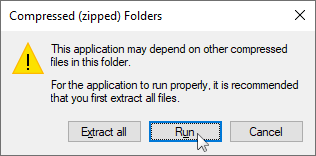
Pro Package, double-click on the icon of the downloaded file. Inside, there are several files, one for each product in the package. Double-click each one to install your products. When Windows asks whether to “extract all” or “run” (pictured below), choose “run”.
-
If you are installing from
USB:
-
Open File Explorer. To do this, hold down the
 Windows
key, and press the
E
key.
Windows
key, and press the
E
key.
- Next, you will see a new File Explorer window appear on your screen (see example image). In the sidebar on the left of the File Explorer window click on “This PC”.
- Insert the USB drive into a USB port on your computer.
- After a few moments, the USB drive will appear under “Devices and drives” in the File Explorer window. Double-click on it.
- There will be a file on the USB drive for each of the ValuAdder products you purchased. Double-click each one to install your products.
-
Open File Explorer. To do this, hold down the
Mac
- If you downloaded individual ValuAdder products, double-click on the icon(s) of the downloaded file(s).
- If you downloaded the All-In-One Package or Pro Package, double-click on the downloaded folder, then double-click on each file in this folder.
-
If you are installing from
USB:
- Insert the USB drive into a USB port on your computer.
- After a few moments, the USB drive will appear on the desktop. Double-click on it.
- There will be a file on the USB drive for each of the ValuAdder products you purchased. Double-click each one to install your products.
Running your Mac software after installation
Once you've followed the above instructions, here's how to run your products:
-
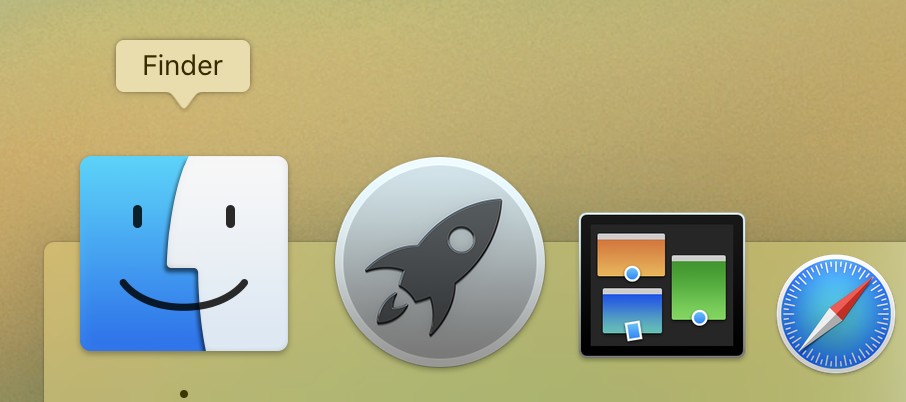 Go to the Finder. You'll find its icon at the bottom of your Mac's screen, at the very left of the dock.
-
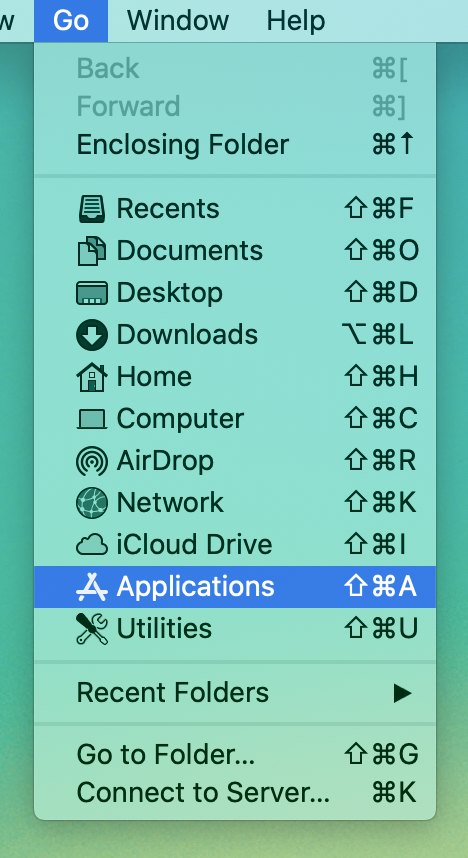 In the menu bar along the top of your Mac's screen, click on
Go.
In the menu bar along the top of your Mac's screen, click on
Go.
- In the menu that appears, click the Applications item. This will show your Mac's “Applications” folder.
- Find your ValuAdder product in the Applications folder.
- Double click on your ValuAdder product to open it.
We Care About Computer Safety
ValuAdder helps ensure the safety and security of your computer system. Learn how.